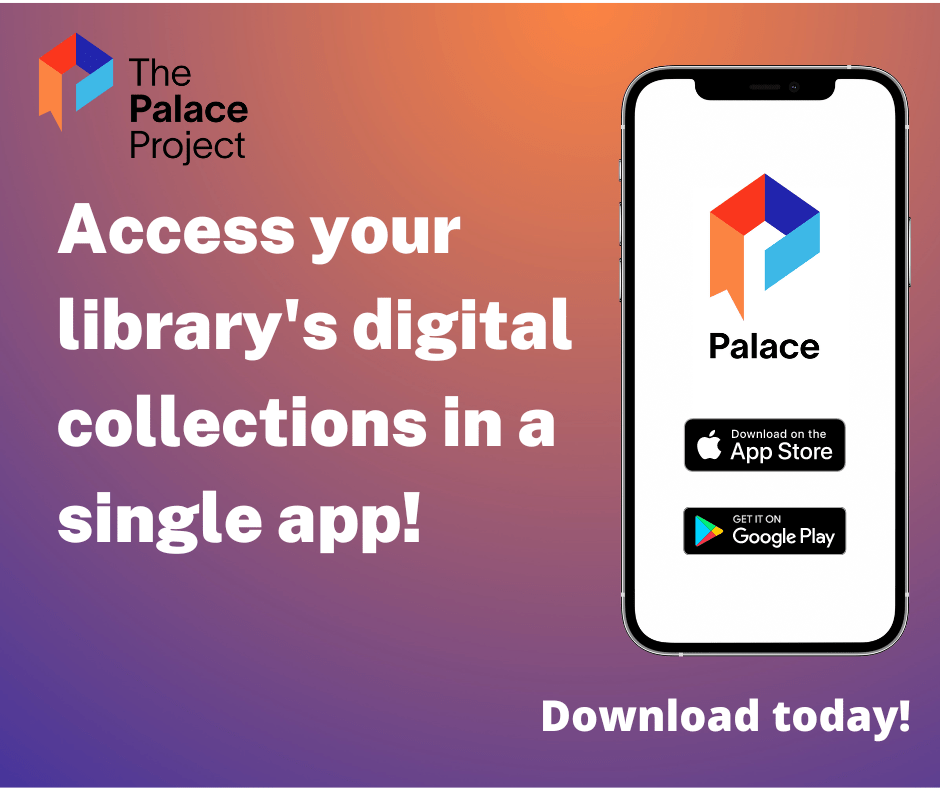
If you are someone who loves reading ebooks and listening to audiobooks, you’ll love this new app! The Palace Project, founded by the New York Public Library, is an app that provides patrons with access to over 15,000 ebooks and audiobooks. Thanks to the Connecticut State Library, Russell Library patrons have access to this app.
To download the app, simply search for the Palace Project in the App Store for iPhone users or Google Play for Android users. The app icon will have the symbol you see in the graphic above, which looks like a multi color letter P. This app is compatible with phones and certain tablets running Android 5+ and IOS 14+. The app is not available for Android 4.3, Android 4.2, 4.1, 4.0.3, 4.0.4, 2.3.3, 2.3.7, 2.2. The Palace app is also not compatible with Nooks, Kindles, or Kobo e-readers. Basically, if you have an older device, this app may not be compatible or available for download.
Once you download the app, you will have to swipe left through a few Palace graphics explaining the three steps to take to get started on the app. You don’t need to pay close attention to those because you’ve got all the info you need here! After you swipe through the graphics, you will be prompted to select your library. Russell Library patrons will select “The Russell Library.” If you are from another town or city, you can still use the Palace app under your home library. Simply search for it after downloading the app. If you happen to belong to multiple libraries, you can include multiple library cards on the Palace app.
Congrats! You’re now in the Palace app and your screen should look a lot like this:
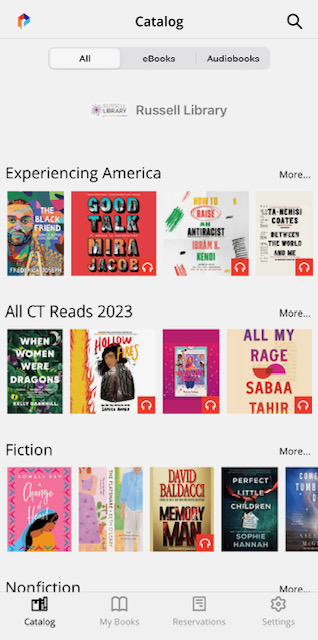
There are four categories for you to choose from at the bottom of your screen which include Catalog, My Books, Reservations, and Settings.
Catalog:
The screen you see in the photo above is the catalog screen. This is where you can browse the different lists provided by the Palace app with various ebooks and audiobooks of different genres or subjects.
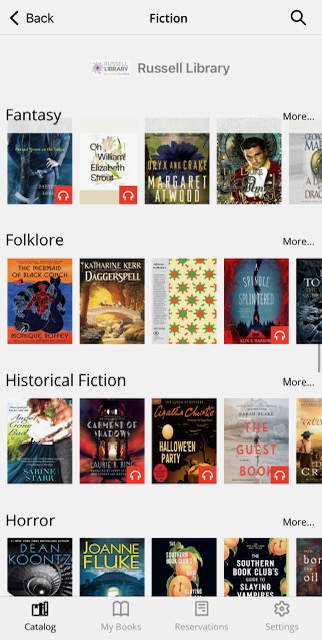
You can choose to browse all types of books offered, or browse by book type, which include ebooks and audiobooks. There are no magazines. If you see a genre you like, you can click the “more” icon on the right side of the screen, and you will see all subgenres under the main genre. For example, under “Fiction” lies multiple subgenres, like fantasy, horror, folklore, and so on.
My Books:
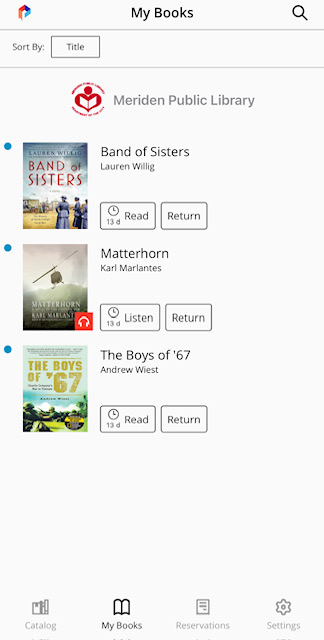
This category is where you can view the titles you have currently checked out. You can manage your loans here, be it returning a book early or downloading a book to be read. These are the books I have borrowed from my hometown library. By the “read” icon, you can see the amount of days left I have to borrow the book until it must be returned. You will be able to borrow all items for twenty days. The book will automatically be returned if you do not manually press the “return” icon before your loan period is up. There are no borrowing or hold limits.
Reservations:
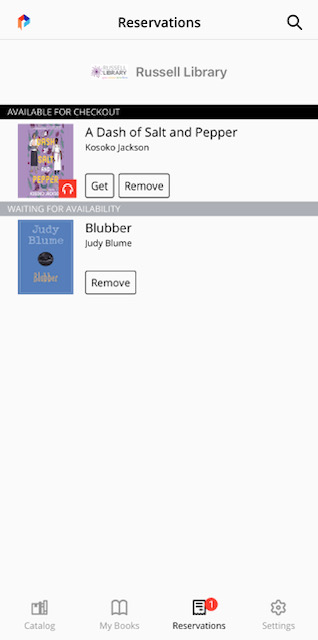
This category is where you can see the items you have on hold. You can check out the titles from here once they are available by pressing the “Get” icon. To remove a hold, simply press the “Remove” icon. The image below is what your Reservations tab will look like. As you can see, one audiobook I have on hold is ready to be checked out, so it comes up as “Get” under “Available for Checkout.” The other title is still unavailable, so it remains under “Waiting for Availability.”
Settings:
You can manage, add, or remove libraries from your account under “Libraries” at the top of the screen. You can also view various policies, including the privacy policy.

Under the “Libraries” tab, you can also sync your reading progress and bookmarks on other devices you have the app downloaded on. That way you can pick up where you left off no matter which device you are using. Simply press the icon to turn on “Sync Bookmarks.”

Reading a Book on the Palace App:
Under “My Books” you may select the “Read” icon to begin reading the books you have borrowed. Once you open the book, you may swipe left to go through each page. In the upper right hand corner, you can modify the font, screen mode (light, off white, or dark), screen brightness, and font size.
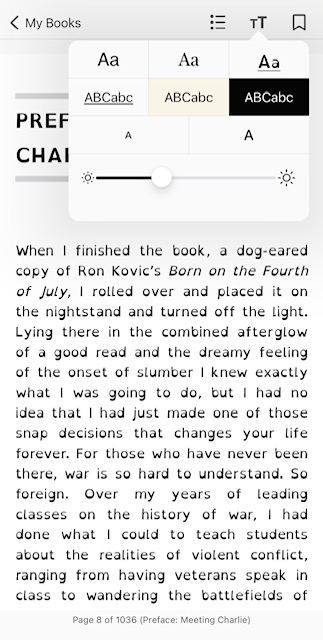
The font I have selected is a dyslexic friendly font. It is the third option in the first row showcasing font options. To change the font size, click either the large or small letter A until the size is what you need. This is something very special about the Palace App. I also love that you can change the screen mode to suit your preferences.
An Important Note for Libby Users:
For those already using Libby, you’re in luck! The Palace App and Libby are connected, so all holds and checkouts will reflect on both apps. The Palace app will not limit your holds, unlike Libby which allows for ten holds at one time.
The “Sync Bookmarks” does not save reading progress on different apps, however. If you went to read an ebook you started on Libby on the Palace app, it will start you from the beginning instead of where you left off.
Concerning Hoopla:
Hoopla does not connect with the Palace app.
For More Help:
To ask for help, go into “Settings” and then select The Russell Library. After this select “Report an Issue.” From there you will be automatically directed to the Russell Library’s tech department email. They will help in troubleshooting any issues you have.
My final takeaways:
As someone who reads a lot of ebooks and audiobooks, I highly recommend this app. It’s so easy to use and offers even more titles for you to choose from than what is on Libby or Hoopla. Please give the library a call with any questions. We will be glad to help! Happy (e)reading!
 The Library Vault
Leave a comment